Every laser workflow eventually hits the same wall: you find a great SVG… and then spend way too long trying to remove one annoying part of it.
Today’s update is a proper quality-of-life upgrade that gets you closer to real design control inside Light Lane.
What shipped today
SVG layer breakdown in the Layer Manager
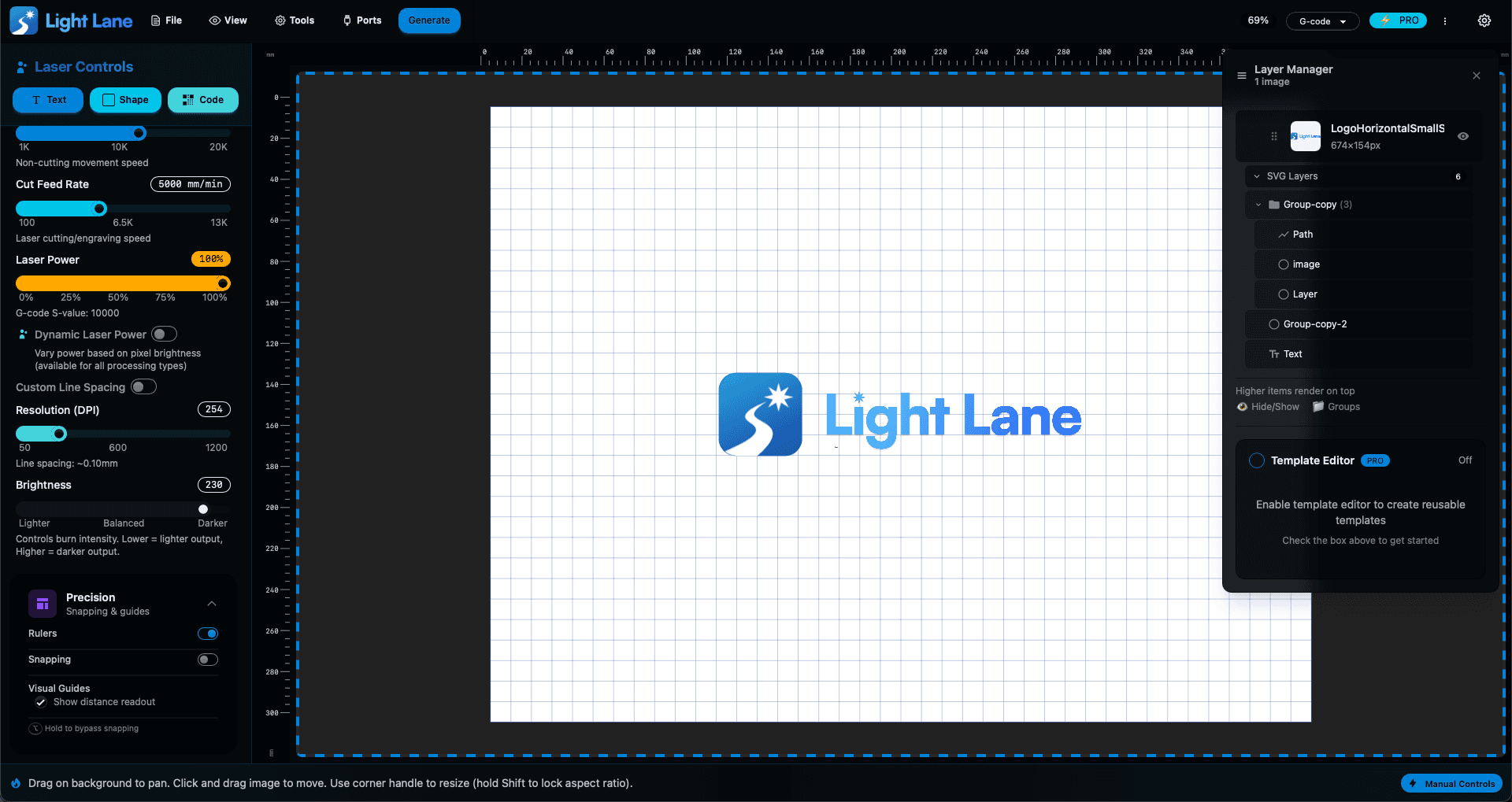
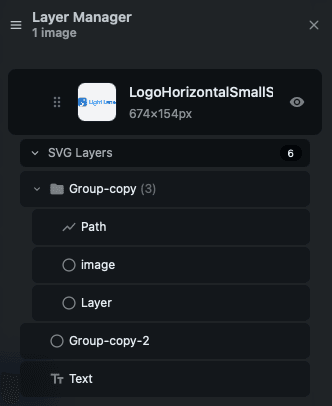
When you drop an SVG into Light Lane, you can now expand it in the Layer Manager and see the internal elements as individual sub-layers.
That means you can stop treating an SVG like one flat object and start managing what’s inside it.
Hide individual SVG layers
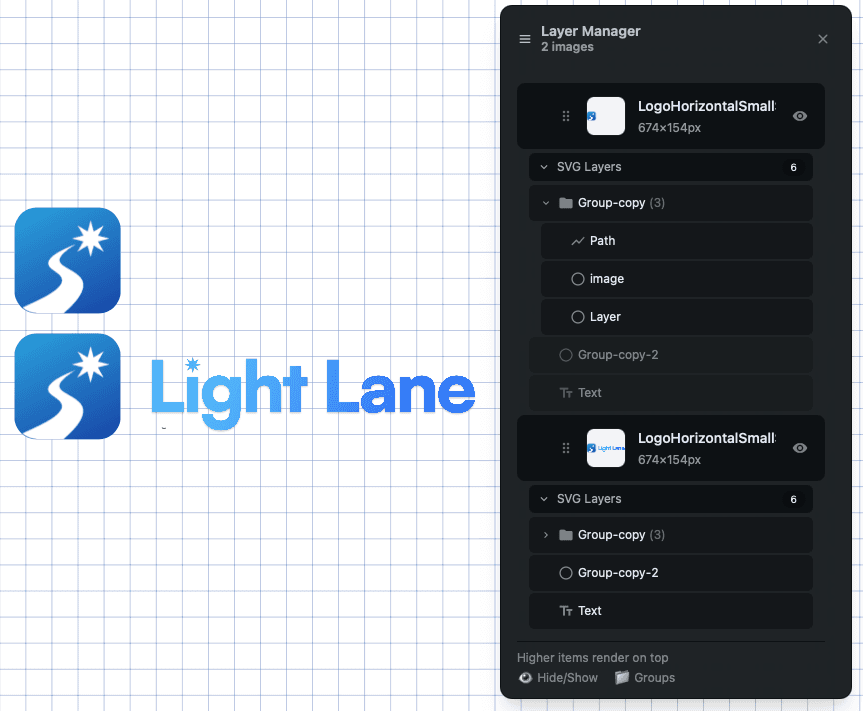
Each SVG sub-layer has its own visibility toggle.
So if an SVG has a background shape, a border, a badge, a bit of text you don’t want, or multiple decorative parts, you can hide those parts directly instead of re-exporting in another app.
This is especially handy for engraving workflows where you want to keep only the parts that actually matter for the job.
The foundation for proper per-layer control
Right now, the MVP focus is simple: visibility control inside the SVG.
But this unlocks the bigger goal: treating SVGs like editable, structured artwork where you can control pieces individually. This is the direction that leads to per-layer settings in the future (engrave vs score vs cut behaviour, different speeds, different power, and so on).
Why this matters for laser work
SVGs are everywhere: logos, badges, maker files, icons, clean vector art, and marketplace designs.
But real jobs are rarely “engrave the entire SVG exactly as-is”.
You usually need to:
- Remove a background fill that would engrave as a giant black blob
- Hide small text that is too fine for your material
- Remove a border, watermark, or decorative element
- Keep just the outline, or just the main icon
- Simplify the design before generating cleaner output
Now you can do that inside Light Lane without jumping through export hoops.
Common use cases
- Logos: hide the tagline and keep the icon for small engraves
- Badges: remove the background circle and keep the outer outline
- Multi-part designs: turn off parts that will burn or muddy detail
- Marketplace files: quickly remove elements you don’t want included
- Labels: hide interior fills and keep crisp linework
Quick workflow
- Drop in an SVG
- Expand SVG Layers in the Layer Manager
- Toggle off what you don’t want
- Generate your job knowing the output is cleaner and more predictable
Try it today
If you’re building anything with vector assets (logos, signs, product marks, labels), this saves time immediately.
Download the free trial, drop in a complex SVG, and see how fast you can clean it up.
- Get Light Lane: https://lightlane.app
- Read the daily drops: https://lightlane.app/blog
We’re shipping fast and these updates stack. If you want a modern laser workflow that keeps getting better week by week, jump in now and lock it in while we’re still early.