
If you’ve ever set up a job on your laser and had that little moment of doubt…
“Is this actually going to land where I think it will?”
…this update is for you.
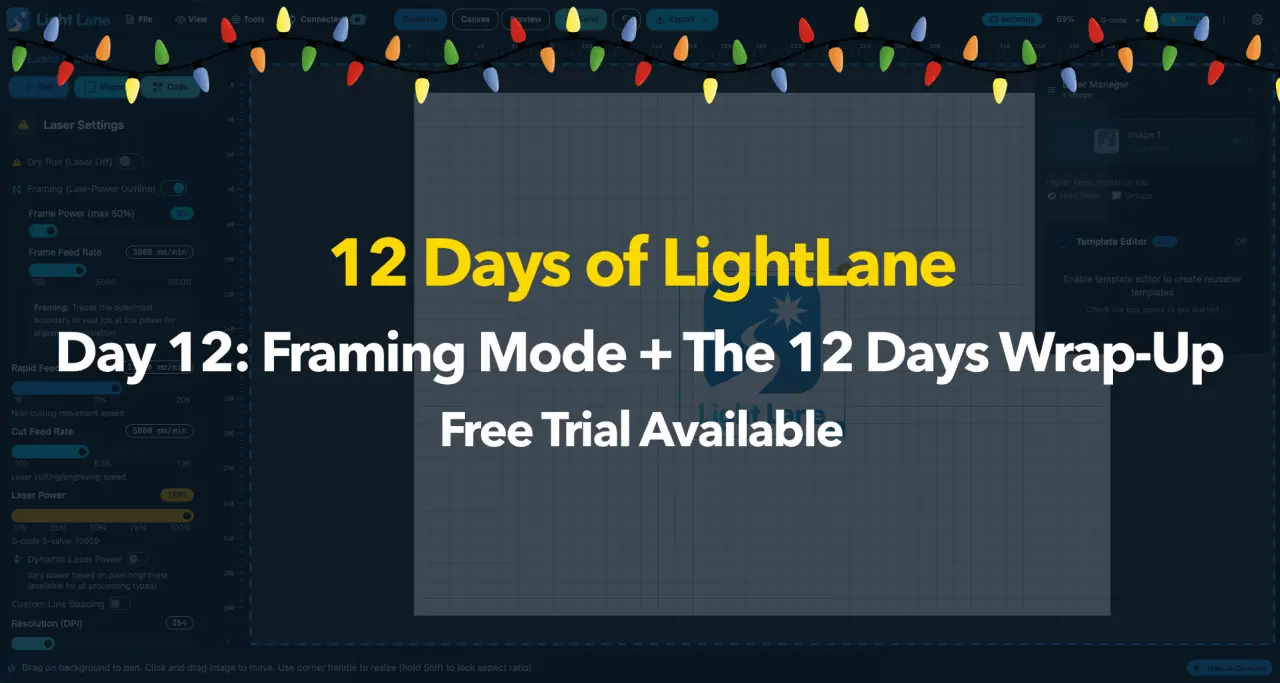
Day 12 ships Framing Mode in Light Lane - a quick, low-power outline pass that shows you the real engraved area before you commit to the full run.
And with that, 12 Days of Light Lane is officially done. It’s been a proper sprint: fast shipping, real workflow upgrades, and a bunch of features that make Light Lane feel more like a serious production tool every single day.
What is Framing Mode?
Framing Mode is a simple concept, but it’s one of those “how did I live without this?” features.
When you turn it on, Light Lane generates a frame path that traces the outer boundary of what will be engraved, then streams that as a quick pass so you can:
- Confirm placement on the bed
- Check scale in real life
- Avoid wasted blanks
- Avoid the classic “off by 10mm” pain
- Set up faster, especially for repeat jobs
It’s basically the final sanity check before you hit go.
The important bit: it frames the actual output, not just the image box
This is where a lot of software gets it wrong.
A lazy framing feature will just draw a rectangle around the original image bounds (or the canvas bounding box). That’s not helpful when:
- Your raster settings cut away the background
- Brightness/threshold changes the engraved area
- You’re engraving a portrait where only parts of the image will actually burn
- You’ve got a design with empty space that shouldn’t be included in the frame
Light Lane’s framing is designed to be based on what you’re actually going to engrave, so the frame is meaningful instead of misleading.
(And yes, this is one of those features where the last 10% of polish can get deep - but we’re already at a point where it’s genuinely usable and a big workflow win.)
How to use it
- Load your design as normal (SVG, PNG, raster photo, whatever your workflow is)
- Dial in your settings so the preview looks like what you want engraved
- Turn Framing Mode on
- Set a low framing power and a safe feed rate
- Click Send and watch it trace the outline
- Adjust your workpiece if needed
- Turn framing off (or just run the job after) and engrave with confidence
This is especially handy if you’re doing:
- Key tags / small parts
- Customer jobs where blanks cost real money
- Tight placement on a pre-finished piece
- Any job where you only get one shot
Why this matters for real users
A lot of laser software focuses on “can it produce G-code” and forgets the real world.
But your actual workflow looks like:
Design → Preview → Generate → Set up the bed → Send → Run → Repeat
Framing Mode targets the part that usually wastes the most time (and material): setup and placement.
Even if you’re experienced, it saves mental load.
If you’re new, it saves your wallet.
12 Days of Light Lane: Everything we shipped
This sprint was about turning Light Lane into something that feels fast, modern, and properly usable for everyday engraving.
Here’s the full recap.
Day 1: Template Manager & Template Editor
Build reusable engraving templates you can share.
https://lightlane.app/blog/template-manager-template-editor
Day 2: Built-in Image Editor for Cleaner Raster Engraves
Adjust brightness, contrast, highlights, shadows, saturation, and gamma inside Light Lane so raster results come out cleaner.
https://lightlane.app/blog/12-days-of-light-lane-day-2-image-editor
Day 3: Built-in QR Code + Barcode Generator (Vector)
Generate QR codes/barcodes directly in-app, customise styles, add logos, drop them onto the canvas as vectors.
https://lightlane.app/blog/blogpost
Day 4: Improved Raster Engraving (Photo + Detail Modes)
Major raster upgrade: Photo + Detail modes, better previewing, and cleaner engraving output for photos and fine text.
https://lightlane.app/blog/blogpost-1
Day 5: Material Test Grid (Power x Speed Calibration)
Generate a test grid job, preview it, engrave it, then click a square to apply the exact settings instantly.
https://lightlane.app/blog/day-5-material-test-grid-power-speed-calibration
Day 6: Step & Repeat + Grouping
Duplicate designs into perfect grids and move them as one. Built for batch jobs and fast layouts.
https://lightlane.app/blog/step-and-repeat-arrays-and-grouping
Day 7: Precision Placement & Snap System
Rulers in mm, clean snapping, keyboard nudge + resize, and a live X/Y readout so placement feels pro.
https://lightlane.app/blog/day-7-precision-placement-and-snap-system
Day 8: SVG Layer Management
Drop an SVG, expand it into layers, hide parts instantly. Faster cleanups, better control.
https://lightlane.app/blog/day-8-svg-layer-management
Day 9: Rotate + Mirror Tools
Instant fixes for artwork: flip, rotate, mirror - no more re-exporting just to correct orientation.
https://lightlane.app/blog/day-9-rotate-mirror-tools
Day 10: SVG Sublayer Editing
Edit individual SVG sublayers right inside the project: nudge with arrow keys, scale (including text size), opacity, visibility toggles, and reset.
https://lightlane.app/blog/day-10-svg-sublayer-editing
Day 11: Export Everything + Smarter Laser Connection
Export G-code, preview SVG, preview PNG - and connect to your laser with way less fuss via smarter serial connection handling.
https://lightlane.app/blog/day-10-svg-sublayer-editing
Day 12: Framing Mode + Wrap-Up
Frame the real engraved output before running the job, and finish the 12-day sprint strong.
What’s next
This sprint proved something important: momentum compounds.
Shipping quickly doesn’t just add features - it tightens the product loop:
- Users try it faster
- Feedback comes in faster
- Bugs get found faster
- Improvements land faster
Light Lane’s goal stays the same:
A clean, modern, cross-platform “design + control in one place” engraving app that doesn’t feel like it’s stuck in the early 2000s.
There’s heaps more coming:
- More workflow tools that reduce friction
- Better preview accuracy across more edge cases
- Continued controller/streaming reliability work
- More “job production” features (the stuff that makes this feel like a real shop tool)
Try it free
If you want a smoother workflow - modern UI, fast iteration, and features that actually remove friction - jump on the free trial for Mac or Windows:
And cheers to everyone who’s been following along with 12 Days of Light Lane.
This is just the start.
https://lightlane.app/blog